


Paint my Room - Try wall color
4.1235.00 Reviews
App Specs
- Version
- 3.3.202
- Updated On
- License
- Free
- Downloads
- 1,000,000+
- Developer
- Try the Colors s.r.o.
- Categories
- House & Home
- Platform
- Android, iOS
Screenshots
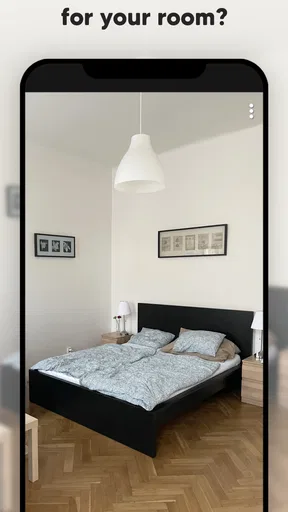
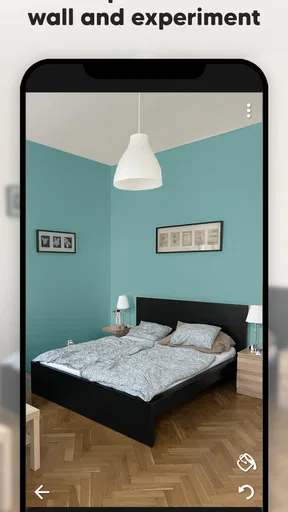
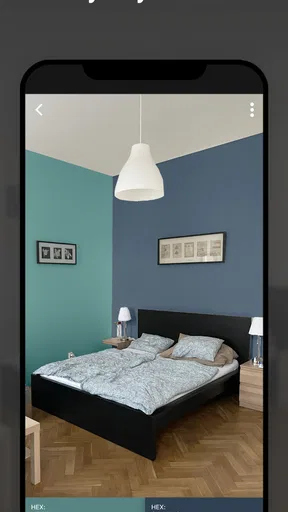
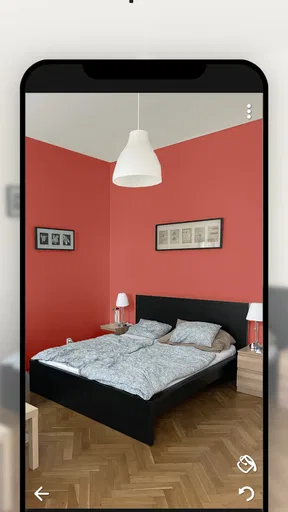
 Analysis by AppCompare
When I’m choosing paint, the hardest part is imagining how a small swatch will look across an entire wall in the room I actually live in. Paint my Room - Try wall color gives me a quick way to test that idea on a photo before I buy paint or start moving furniture. It is a focused house and home app from Try the Colors s.r.o., and its appeal is simple: make color decisions feel less like guesswork.
A quick visual check, not a renovation plan
The app’s basic approach suits a first look: photograph a room, then try different wall colors on the image. That is useful when I have a short list of possibilities and want to see how each one sits beside the floor, furniture, and existing decor. A phone preview cannot reproduce paint on a real wall, but it can help me notice that a favorite shade feels too strong across a large surface or clashes with the sofa.
I would use it early in a project, before narrowing down physical samples. It is less useful as a final authority because a photograph depends on the room’s lighting and the way the camera captures color. Treat the result as a comparison tool rather than a promise of the finished room, and it can still save time and prevent an impulsive choice.
What the current release tells me
The app is free to download, has an Everyone content rating, and offers in-app purchases ranging from $0.99 to $29.99 per item. Its current version is 3.3.132, following a release on April 13, 2020; it has reached over one million installs and holds a 4.0 average from around 20,000 ratings, alongside 221 written reviews. Those figures suggest it has found a substantial audience, though popularity alone does not tell me whether a preview will match a particular room.
The version number shows that the app has continued through multiple releases since its debut, but it does not tell me which individual capabilities changed along the way. I would not assume a specific improvement from the number alone. For someone returning after a while, the practical point is to judge the version currently available on their device, rather than relying on old screenshots or someone else’s past experience. It supports Android 7.0 and later, which makes it accessible to many older devices as well as newer ones.
Who gets the most out of it
I can see this being especially handy for renters planning a permitted refresh, homeowners comparing a few neutral tones, or anyone trying to get a household to agree on one direction. A realistic evening use case: I take a photo of the living room before dinner, test a warmer shade against the existing wood and upholstery, then show the saved options to the person sharing the space. That turns a vague “maybe something lighter” conversation into a concrete comparison.
It also works well when I am exploring a room one wall at a time rather than planning a full makeover. I can keep the flooring and furnishings in view while testing a change, which is more helpful than staring at an isolated color chip. If I am choosing between neighboring shades, though, I would still get physical samples and look at them in the room at different times of day. The app helps me shortlist; it should not make the final purchase decision for me.
Worth Reading Before You Choose

Flipboard Shows What News Apps Must Do Beyond the Feed

Switching to Android Auto Means Rethinking Your Driving Routine

Google Calendar Makes a Crowded Week Easier to Manage

Ludo King Makes the Most of the Minutes Between Plans

Baby Panda World Brings Quick Play to Modern Phones, but Its Game Library Feels Busy

ESPN’s Live Game View Makes Following Close Games Easier
Compared with browsing paint cards or searching for room inspiration, this gives me a more personal preview because the backdrop is my own space. Compared with a broader interior-design planner, its appeal is the narrow focus on wall color rather than a whole-room redesign. That focus is convenient if paint is the only decision I need to make, but it is not the right substitute for a tool built around furniture layouts, renovation measurements, or detailed project planning.
Getting Started with Paint my Room
So, here’s the deal. You download Paint my Room - Try wall color from your favorite app store, and voila, you’re on your way to becoming an interior decoration guru. The app is super easy to navigate, which is a huge plus if you ask me. No one wants to deal with a million buttons when all you want is to see how that dreamy teal looks in your space!
The interface is sleek and intuitive. Right from the get-go, you're prompted to take a picture of your room. The app uses this image as a canvas for your color experiments. Trust me, it’s like magic watching the walls change color with just a tap.
Features Worth Mentioning
Alright, let’s dive into the features because this is where the app really shines. First up, the color palette. It’s vast. I’m talking an endless sea of hues to choose from. Whether you’re into bold, bright tones or more subtle, earthy shades, you’ll find it all here. And guess what? They even have trending colors if you’re looking to stay hip and on-trend.
Another cool feature is the ability to save your favorite colors and projects. This is perfect if you’re the type who likes to mull things over before making a decision. Plus, you can share your designs with friends or family for some much-needed second opinions.
The app’s precision is noteworthy too. It smartly identifies the walls in your photo and applies the color precisely where it should go, avoiding furniture and other distractions. No more guessing games!
Tips for Best Use
Now, let me give you some insider tips for making the most out of this app. First, ensure you take photos in good lighting. Natural light is your best friend here. It ensures colors appear true to life, and you get a realistic preview of what to expect.
Also, don’t be afraid to experiment. Try out colors you never thought you’d like. Sometimes a little adventure in your color choices can lead to surprisingly stunning results.
How I’d compare the preview with real paint
I would not use a phone image to decide whether a particular shade is definitively right. Screens vary, photos can shift color, and daylight changes the appearance of a wall throughout the day. Instead, I’d use the preview to answer a narrower question: does this color direction feel promising in this room? Once I have a shortlist, a real sample viewed near the floor, trim, and larger furnishings is a much safer final check.
There is a useful trade-off here. Paint cards are dependable for seeing the manufacturer’s actual color range, but they do not show how a shade might cover a whole wall beside your own furniture. A room-photo preview gives that context, while sacrificing some color certainty. Using both in that order—digital exploration first, physical confirmation second—makes more sense to me than expecting either method to do everything.
Small choices that make comparisons clearer
For a fair comparison, I would take one clear photo from a position where the target wall is visible and the room’s main furnishings remain in frame. I would keep that same photo while testing colors, rather than taking a new picture for each option. Otherwise, changes in angle or exposure can make one shade look better simply because the image changed. This is a simple workflow, but it makes side-by-side decisions more useful.
I would also avoid judging a color from a photo with a lamp shining directly on the wall or strong sunlight washing out one section. If a room has both bright and shaded areas, the image may make the preview look uneven; that is a cue to treat it cautiously, not proof that the paint itself will behave exactly that way. For a shared room, saving a small set of genuinely different candidates is more practical than sending everyone a long stream of near-identical shades.
Where the app can fall short
Wall detection and color placement are central to the experience, but complex rooms can make any photo-based selection harder to interpret. Doorways, deep shadows, mirrors, patterned wallpaper, and objects close to a wall all create visual edges that can complicate a clean preview. If the color spills onto an object or misses part of the surface, I would retake the image from a clearer angle rather than trusting that first result. A little setup can improve the comparison, but the app is still working from a photograph, not a measured model of the room.
It is also not a buying calculator. A visual mock-up does not tell me how much paint a wall needs, how many coats the real surface will require, or whether a chosen product suits the material. I would turn to the paint maker’s guidance or a store professional for those practical questions. Anyone expecting a complete renovation workflow, exact color matching, or a substitute for testing real paint may find this too limited.
Costs, access, and deciding whether it fits
Because downloading it is free, I can try the basic idea without paying upfront. The in-app purchase range is broad enough that I would check what an item includes and whether it is genuinely useful before confirming a purchase. If all I need is to explore a few wall-color ideas, I would start with the free experience and see whether it covers that task before spending anything.
I would recommend it to someone who has a room photo ready and wants a fast visual way to compare paint directions, especially when another person needs to see the options too. I would skip it if my main need were precise color measurement, a detailed floor plan, or professional-grade renovation specifications. Those are different jobs, and a dedicated planning tool or physical paint samples would be a better fit.
Why You’ll Love It
So, why should you download Paint my Room - Try wall color? Well, if you’re anything like me, the idea of committing to a wall color is daunting. This app eliminates that fear. It gives you the confidence to try before you buy, and that’s invaluable. Plus, it’s just plain fun to play around with different designs and see your space transform in seconds.
Not to mention, it can save you from some serious buyer’s remorse. No more expensive paint jobs that you end up regretting. You can see the future of your room before it even happens.
What I’d want to see from here
For existing users, the clearest way to judge whether the app still suits them is to try their usual room photo and see whether the current version handles its walls cleanly. The release history establishes that it has moved on from its first launch, but I would look for concrete changes in the app itself before assuming a new version has altered the workflow or improved a particular result. That keeps expectations grounded and lets the tool’s present-day usefulness speak for itself.
As a user, I would keep an eye on whether the preview remains easy to compare and share, whether the wall selection behaves well in rooms with tricky edges, and whether paid options add something I personally need. Those are the details that matter more to a paint decision than a long feature list. If the core process stays quick and gives me a sensible shortlist, it is doing its job.
So, next time you’re feeling the itch to redecorate, give Paint my Room - Try wall color a whirl. It’s like having a personal interior decorator in your pocket, ready to help you make those big decisions with ease and confidence.
Happy painting, my fellow DIY enthusiasts! Now go on and color your world!
Pros
- Easy-to-use interface for quick color changes.
- Wide selection of colors to choose from.
- Realistic room previews help visualize changes.
- No ads interrupting the user experience.
- Fast performance with quick color rendering.
Cons
- Limited free features
- premium purchase needed.
- Requires internet for full color palette.
- Occasional crashes on older devices.
- No option to save multiple projects.
- Limited support for unusual room shapes.
FAQs for Paint my Room - Try wall color
What features does Paint my Room offer for color visualization?
Paint my Room provides an intuitive interface that allows users to take a photo of their room and apply different paint colors to the walls. The app offers a vast palette of colors and the ability to adjust lighting and texture effects to see how different shades will look under various conditions. This helps in making informed decisions about paint choices.
Is Paint my Room easy to use for beginners?
Yes, Paint my Room is designed with user-friendliness in mind. The app features a straightforward, step-by-step process that guides users through capturing their room and applying colors. Even those with little to no technical expertise can navigate the app effortlessly, making it ideal for anyone considering a paint makeover.
Does Paint my Room work on both Android and iOS devices?
Absolutely, Paint my Room is available on both Android and iOS platforms. This ensures that users, regardless of their device preference, can access and enjoy the app's features. You can download it from Google Play Store for Android devices and the App Store for iOS devices.
Are there any costs associated with using Paint my Room?
Paint my Room offers a free version with basic features, which is perfect for most casual users. However, for those seeking an enhanced experience, there are in-app purchases available. These include advanced color palettes and additional customization options that can elevate your room visualization.
What are the system requirements for using Paint my Room?
For optimal performance, Paint my Room requires Android devices to have at least version 5.0 (Lollipop) or higher, and iOS devices need to run on iOS 11.0 or later. It's also recommended to have a device with a decent camera quality to capture clear images of your room for the best visualization results.


